

Deploy to Ubuntu Server
Pipeline Configuration File (.gitlab-ci.yml)
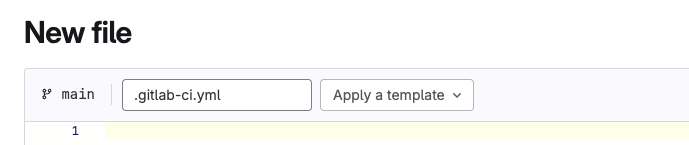
Create a CI/CD Pipeline and host it on the application’s git repository in a simple YAML file, and the file must be saved .gitlab-ci.yml so that GitLab can automatically detect the pipeline code and execute it without any extra configuration effort from our site. So, in the root of the project repository, we will create a .gitlab-ci.yml file and write all the pipeline configuration inside
The YAML file has three main configurations
Run tests---> Build Image ---> Deploy, and are configured as JOBS.Jobs define what to do.
A job must have a script, which is where commands are specified to execute.
Let’s create jobs for all the tasks.
Run Tests
run_tests:
    image: node:24.9-slim
    script:
        - cd frontend
        - npm ci
Common execution environment on GitLab is Docker Container, so instead of executing the jobs on the operating system(Linux, Windows), we will execute the jobs inside containers so the GitLab runner is installed on some Linux machine, and on that machine, GitLab runner creates Docker containers to run the jobs and the managed runners from GitLab that are available use Docker container as the execution environment.so all jobs written will be executed inside Docker containers, but as we know containers run based on a certain image. A container can not run without an image, and depending on the image used, there are different tools available inside the container.
For example, if I have a Node.js image, then I will have Node.js and npm available inside the container.
If I use basic alpine image, I will have basic linux commands and tools inside the container
Execute on a Docker container
Build a Docker image and push to the Docker Private Hub repository.
- Log in to the repository
- Validate Login Credentials – GitLab needs the repository credentials.
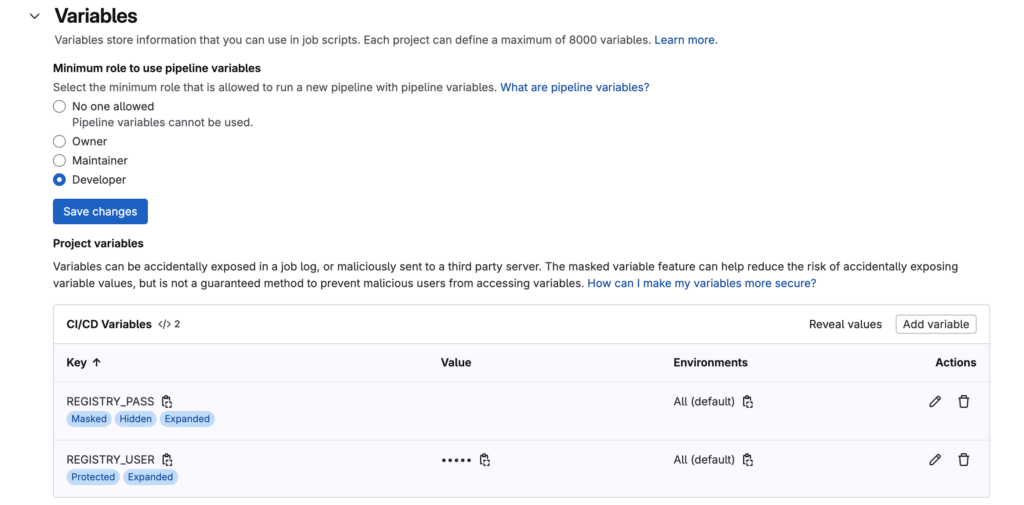
Configure project variables in the CI/CD settings,
Below is where you can create custom variables, tokens, passwords, usernames which should not be included in the repository for security reasons!
variables:
      IMAGE_NAME: tokslaw/tokslaw-lab
      IMAGE_TAG:  node-app-1.0
Build Image
Builds an image from Dockerfile
build_image:
    image: docker:29.2.1
    services:
        - docker:29.2.1-dind
    variables:
        DOCKER_TLS_CERTDIR: "/certs"
    before_script:
        - docker login -u $REGISTRY_USER -p $REGISTRY_PASS
    script:
        - docker build -t $IMAGE_NAME:$IMAGE_TAG .
        - docker push $IMAGE_NAME:$IMAGE_TAG
        - npm run build
    artifacts:
        paths:
            - "frontend/dist"
The script logic is to build a Docker image of the application from the Dockerfile, which exists in the root of the project, which defines the base image, among others.
To build an image that can later be pushed into the repository, take the image using the repository name with a tag name - docker build -t tokslaw/tokslaw-lab:node-app-1.0 .
Then, we do docker push tokslaw/tokslaw-lab:node-app-1.0
The way Docker knows where you want to push that image or the address of the repository is inside the image name itself. So on the Docker registry, you have a repository called <Docker repo name> and tag name.
Before Docker push, you need to authenticate with the repository; otherwise, it will not work
- docker login -u $REGISTRY_USER -p $REGISTRY_PASS
Docker In Docker
To ensure that the script runs, you have to make sure the job execution environment of this specific job (build image) has all the tools needed to execute these commands, so as we know, on managed GitLab runners, all jobs will run in the Docker container, and in that Docker container, we need to have the commands of jobs needing execution.
For this to happen, we need Docker to be available in a Docker container, hence Docker in Docker.
With Docker in Docker, both the Docker client and the Docker daemon are available to execute docker command.
- image:
docker:29.2.1.(client) - services:
docker:29.2.1-dind(daemon)
build_image:
    image: docker:29.2.1
    services:
        - name: docker:29.2.1-dind
NB: service is an additional container that will start at the same time as the job container and the job container can use that service during the build time. It links container for communication purpose
With the image and services is a complete set of Docker client and server in the same job execution environment. These two containers will be linked to each other and able to communicate with each other. For communication, need the same Docker certificate to authenticate and communicate with each other and to read from the same certificate folder.
 variables:
        DOCKER_TLS_CERTDIR: "/certs"
NB: The certs will be shared with the service container and job configurations.
NB: Image of Docker image push to Docker Hub
Stages
Multiple jobs in the same stages will be executed at the same time. They can be split into different stages, like:
- Run_tests
- build_image
- deploy
To define the stages in the order for the jobs to run;
The test will run, and if successful, it will build the Docker image, push the image, and then deploy the new image.
Stages help to group multiple jobs into stages that run in an order
Multiple jobs in the same stage are executed in parallel
Deploy
To deploy on a server, we need a deployment server to deploy and run our application.
From the local machine to the deployment server, using ssh command to securely access remote servers.
To ssh into the server, you need an ssh key. On the server, you can add your own ssh key by
- Generating an SSH key pair(public and private) –
ssh keygen - Upload the public key to the server, and all servers created will be accessible using the public key.


- Upload the public key to the server, and then be able to connect to any server created on the Ubuntu server using the private key.
cat /Users/taborg/.ssh/linode_server2_key.pub
- Add the ssh key to the server
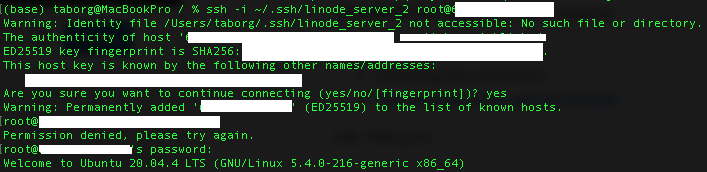
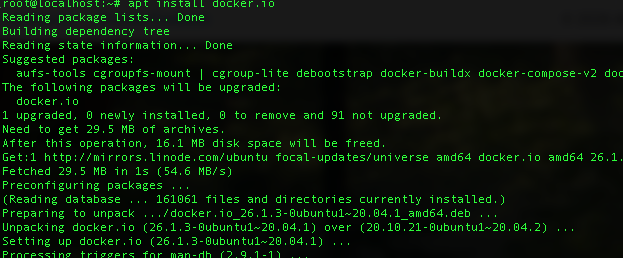
- Install Docker on the server, grab the public IP of the Ubuntu server, and connect locally to the machine and ssh into the server using ssh command
ssh "Your username"@192.xxx.yy.zz
apt install docker.io
Deploy App to the server
Deploy a Docker image to the server, and how it will connect to the server to deploy the Docker image, use ssh command too. The GitLab runner will start the container for the deploy job, and inside the container, you will execute the ssh command to connect to the remote server.
ssh -i ~/.ssh/<private key> <username>@ip address
Create variables for SSH key

It creates a temp file with the content available
SSH command to connect to the deployment server
deploy:
    stage: deploy
    before_script:
        chmod 400 $SSH_KEY
    script:
        - ssh -o StrictHostKeyChecking=no -i $SSH_KEY root@66.228.61.110 "
            docker login -u $REGISTRY_USER -p $REGISTRY_PASS &&
            docker ps -aq | xargs docker stop | xargs docker rm &&
            docker run -d -p 3000:3000 $IMAGE_NAME:$IMAGE_TAG"
Once connected, start a container using the built image to execute the jobs by passing docker command to ssh "docker run -p 3000:3000 $IMAGE_NAME:$IMAGE_TAG"
This will pull and run the specified image from the private registry and authenticate before running the image.
- docker login -u $REGISTRY_USER -p $REGISTRY_PASS &&
After the first attempt, it is successful, but on the second or any following execution, it will try to create and start a new container on the same host port and will fail, so the remedy to this is to stop and remove any existing container on the $port (port 3000) docker ps -aq | xargs docker stop | xargs docker rm &&
NB: relate to the SSH key file so that when GitLab creates the temporary file from the SSH key variable that was created, it will set access permissions on the SSH private key file and those access permissions are to open by default, so anyone can read and write. Hence, an error occurs,
To fix: Restrict access permissions to the ssh key file chmod 400 $SSH_KEY

Execute the pipeline.
Then Validate the Application
- First – ssh to the remote server
- Check docker container running –
docker ps
- Access the application from a browser
ipaddress:$port66.228.61.110:3000
You have successfully built a basic CI/CD pipeline for Vite React Project